
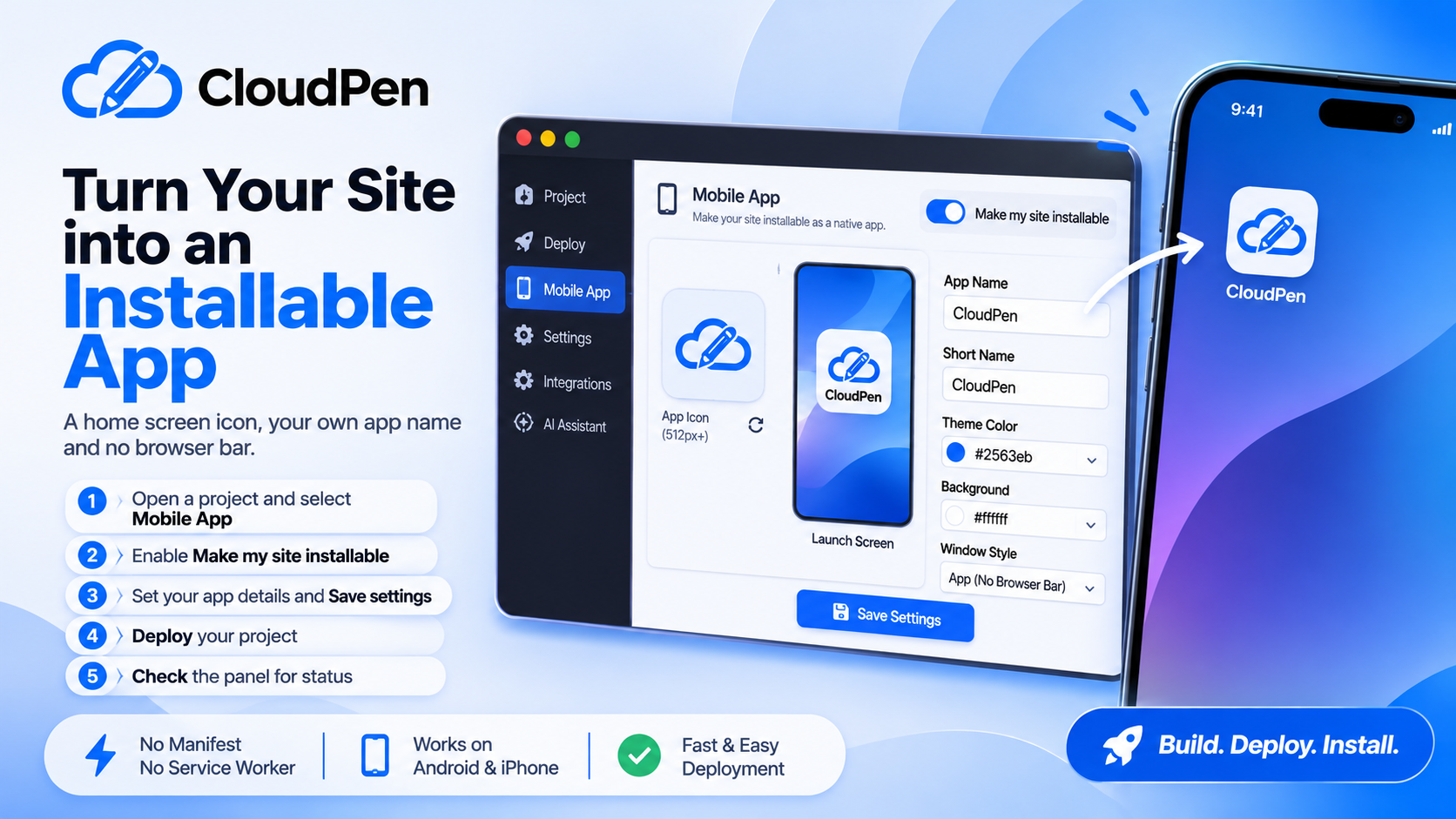
Turn Your Deployed Site Into an Installable App

Cloudpen Team
A home screen icon, your own app name and no browser bar. You can give a deployed Cloudpen site all of that without writing a manifest or a service worker.
This makes your site installable from the browser. It is not an app store release.
Set it up in five steps
- Open any project and select Mobile App in the editor sidebar.
- Turn on Make my site installable. A live preview of your icon and launch screen appears.
- Set your app details and click Save settings. Saving never changes your live site by itself.
- Deploy or redeploy. Cloudpen adds the app files to the deployed site at that moment.
- Check the panel. It shows whether your site is installable, any warnings, and when the last deploy ran.
App settings
| Setting | What it does |
|---|---|
| App name | Full name on install prompts and launch screens (up to 45 characters) |
| Short name | Label under the home screen icon (up to 12 characters) |
| Theme color | Colors the status bar area and the default letter icon |
| Background | Launch screen color while the app opens |
| Window style | App (no browser bar), Fullscreen (hides the status bar too, good for games), or Minimal (small back and reload bar) |
| App icon | An image from your project, or a generated letter icon |
Icons
Upload your icon through the file explorer, press refresh next to App icon, then select it.
- PNG, JPG or WebP, between 96 and 2048 px on each side, under 5 MB.
- A square PNG of 512 px or larger looks sharpest.
- No icon, or an unusable one? Cloudpen generates a letter icon from your short name and theme color.
You only supply one image. Cloudpen creates every size phones need, including the maskable icon for Android and the Apple touch icon for iPhone.
What gets added to your site
On each deploy, Cloudpen adds a web app manifest, the generated icons, and a small service worker. The service worker is network-first, so a new deploy is never hidden behind an old cache. The cache is only used when a visitor is offline. Your source files in the editor are never touched.
How visitors install it
- Android (Chrome): open your site, tap the browser menu, then Install app.
- iPhone (Safari): tap Share, then Add to Home Screen. iPhone has no install popup, so this is the only way.
Good to know
- It works for frontend deployments: static sites and single-page apps. Backend and fullstack projects such as PHP/Laravel are not covered yet.
- Your site needs an
index.htmlat its root with a closing head tag. - If your site already ships its own manifest, Cloudpen leaves it alone. If it has its own service worker, Cloudpen skips its offline support so the two do not conflict.
- Installable Apps is available on paid plans.
Build the site, flip one switch, deploy, and send the link to your phone.